
Prerequisite: You have purchased a license and received a license key by email.
The same license key can be activated by the number of users for which licenses were purchased. Each licensed user should follow these steps to activate their Shared Calendar license in Microsoft Teams.
Exception: If you purchased an organization license, only one person needs to activate the license key for the entire organization. All other users in the same tenant will receive their license automatically through Entra ID / SSO.
Steps:
- Go to your Shared Calendar tab in one of your channels, or add a new shared calendar if it is not already there.
In the Shared Calendar app, click PRO Upgrade.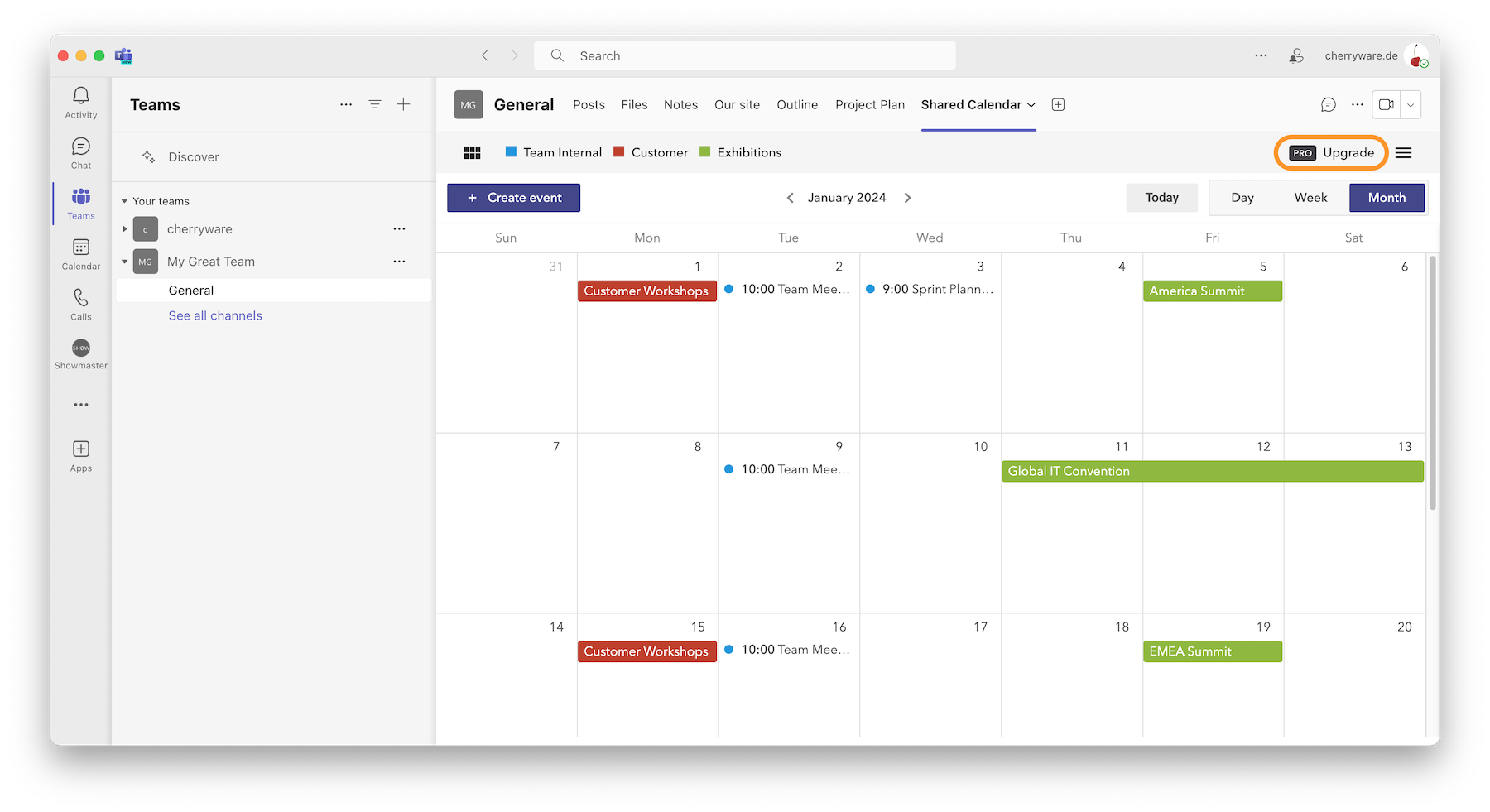
- Copy the license key into the input field.
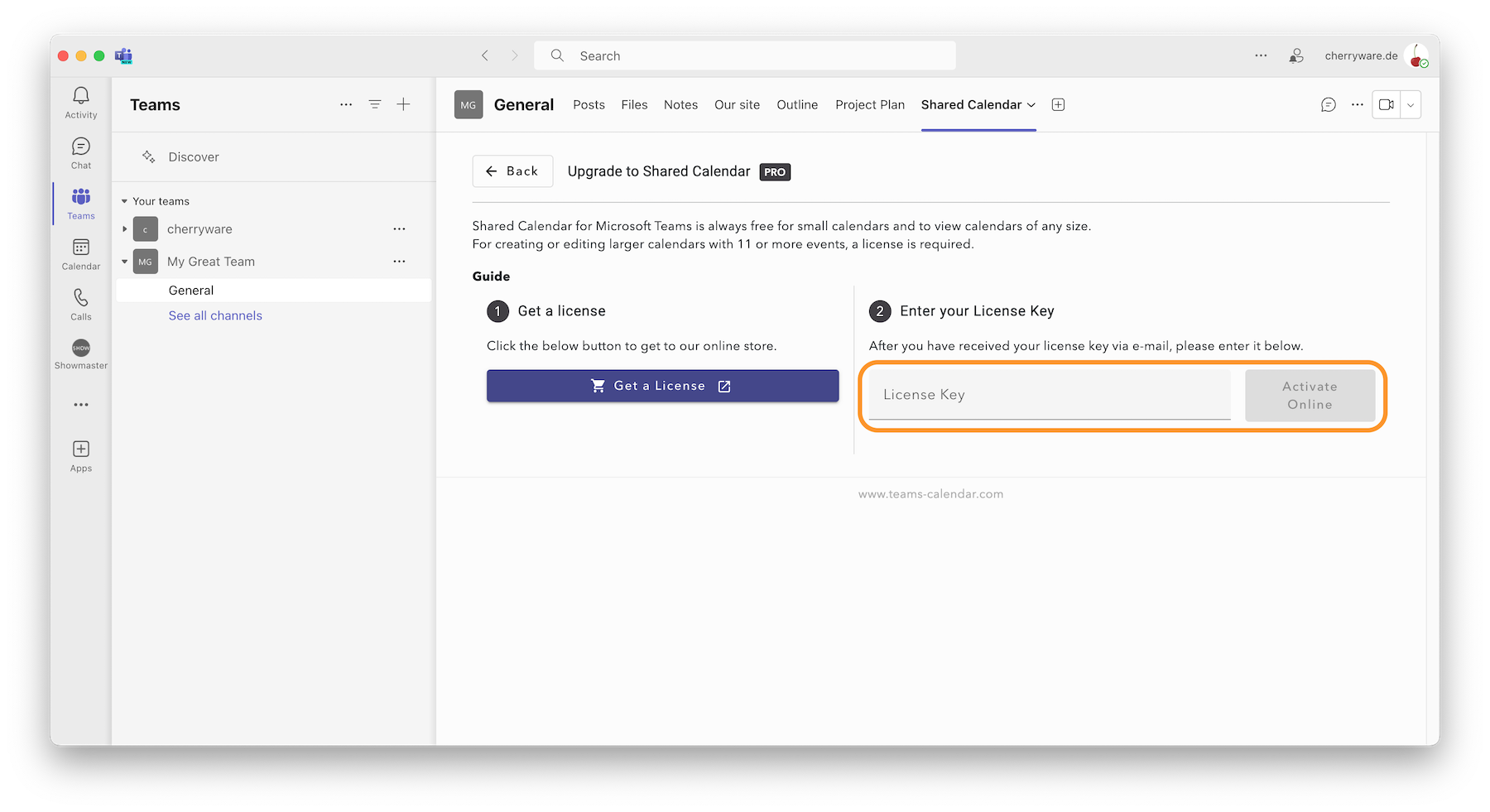
- Click Activate Online.
Done! You can create and manage as many calendars as you need.
Note: Permissions are requested afterwards to store the license key in your Teams account and make sure it is available across all your devices. Without these permissions, everything will still work, but you will need to re-enter the license key manually on each of your devices from time to time.